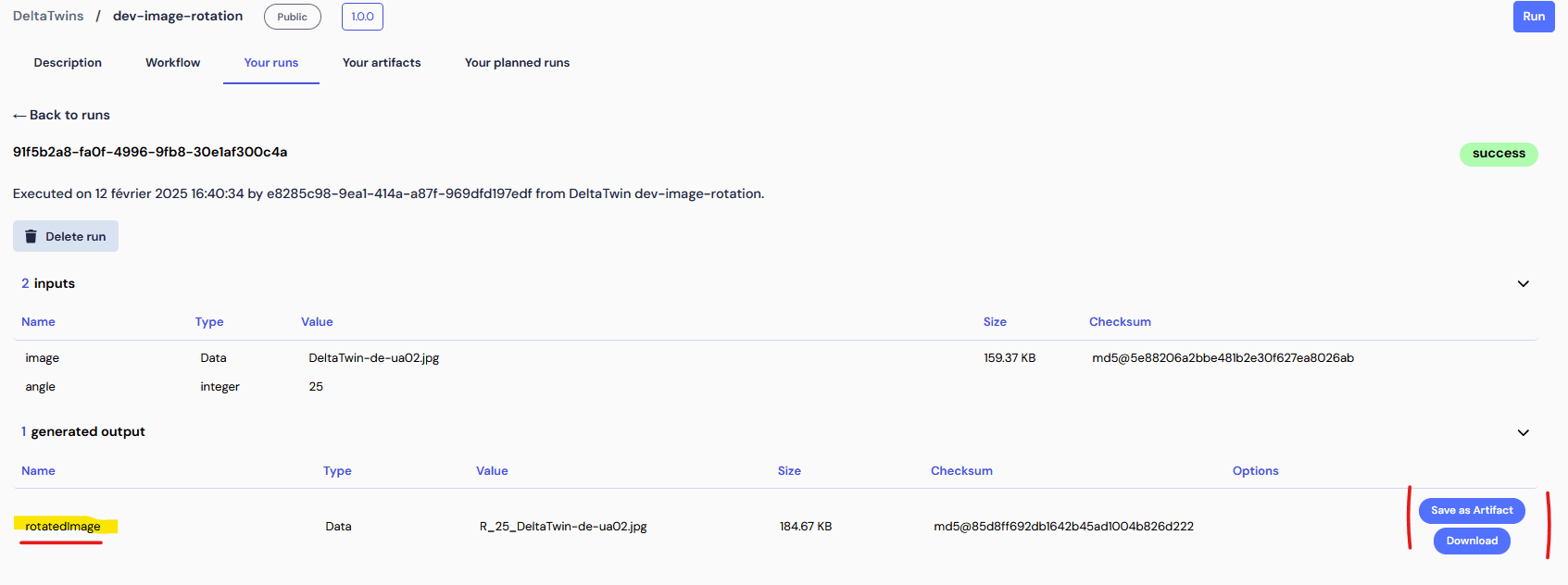
Run Locally
The DeltaTwin® Command Line Interface (CLI) enables you to run your DeltaTwin® component locally for testing and experimentation.
deltatwin run start_local -i inputs_file_example.jsoninputs_file_example.json is a file containing all input values. Below is an example input file that takes as input the URL of the GAEL SYSTEMS logo and an angle value of 90 degrees:
{
  "image": {
    "type": "Data",
    "url": "https://platform.destine.eu/wp-content/uploads/2024/03/DeltaTwin-de-ua02.jpg"
  },
  "angle": {
    "type": "integer",
    "value": 90
  }
}
Local Run Limitation
When running DeltaTwin® components locally, some input types are not supported:
- DriveData: Resources stored in DeltaTwin® Drive cannot be accessed remotely for local execution. You must download these files manually and update the manifest to reference the local path.
- Secret: Sensitive or secure data management mechanism cannot be used locally, you may use the
stringtype. - URL with SesamEO API Key
Run on DeltaTwin® cloud environment
DeltaTwin® service provides a cloud environment to store and run your DeltaTwin® project.
Publish
To proceed, you will need to publish your DeltaTwin® by using the command ‘DeltaTwin® component publish’ ( see (CLI Documentation )) for more details).
For example, to publish the previous rotation DeltaTwin® as version 0.1, enter:
deltatwin component publish -t demo -v private 0.1the optional parameters indicates that:
-t demois a topic name for referencing our project. Later, you will be able to search DeltaTwins by topic name.-v privatemeans that the DeltaTwin® is only visible to you. If you set topublicthe DeltaTwin®will be visible and runnable by any user.
Once published, you can remotely run your DeltaTwin® component either with the command line or by using the DeltaTwin® web application.
Run using CLI
The following command enables to get the DeltaTwin®
deltatwin component listNow, use the name to run your DeltaTwin
deltatwin run start TWIN_NAME -i inputs.jsonRun using UI
-
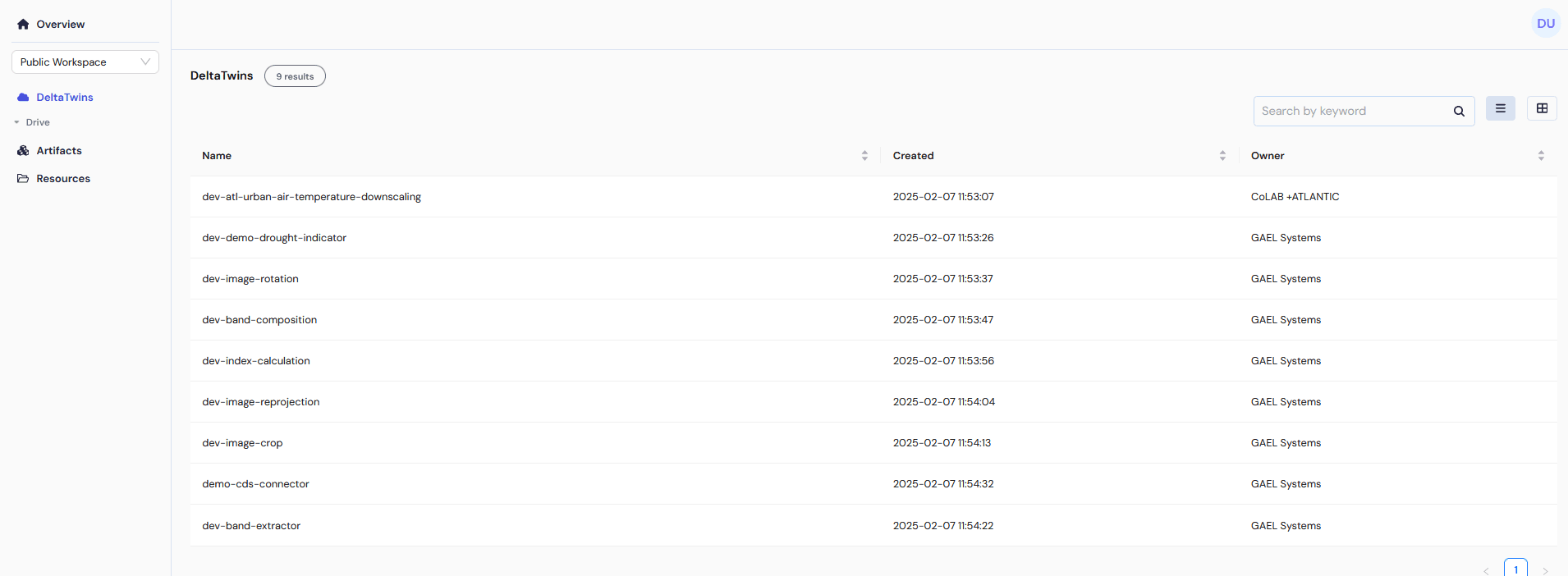
Access to the list of DeltaTwin® components
-
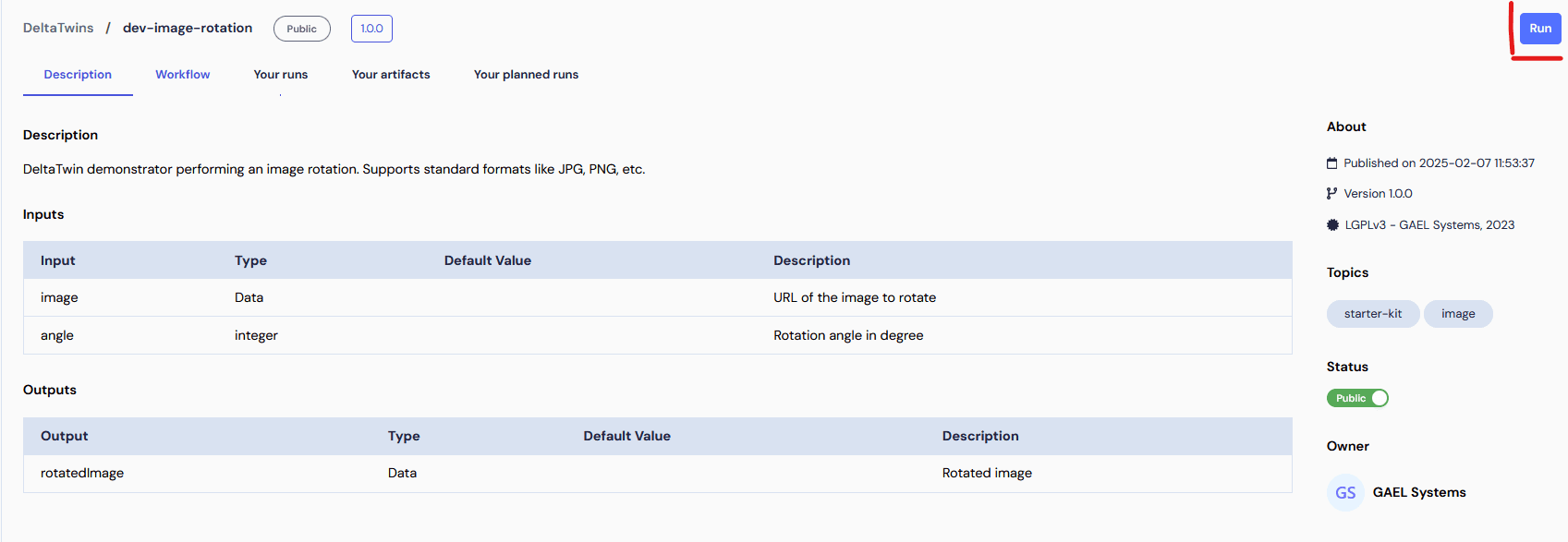
Select a DeltaTwin® and its details are displayed. Press “Run” button
-
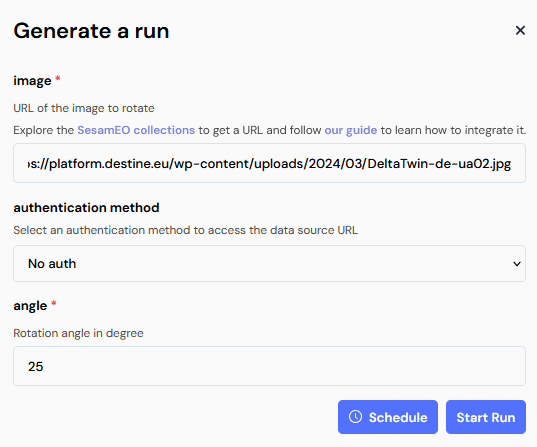
A pop-up opens with the inputs of the DeltaTwin® component. Fill in the fields according to your need.
-
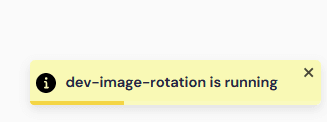
Once the run has started, notification messages will inform you of its progress status (start, error, success).
-
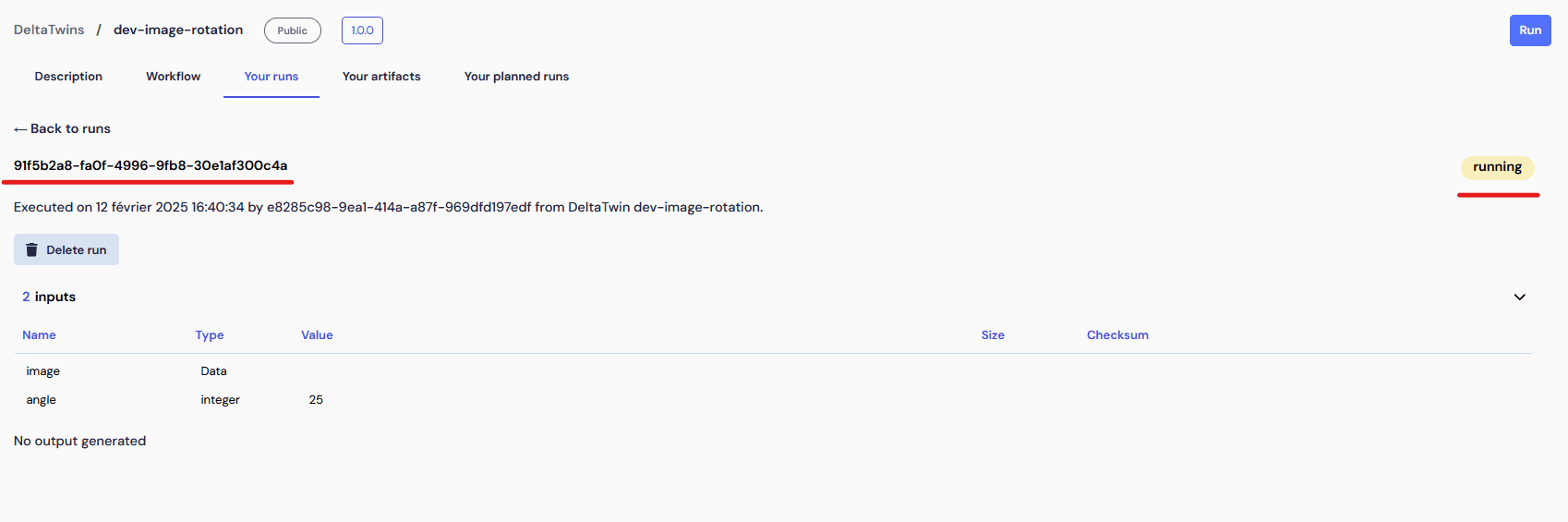
The details of the run are displayed with its status.
-
By clicking on “Back to runs”, we can have the list of executions of the DeltaTwin® component.

-
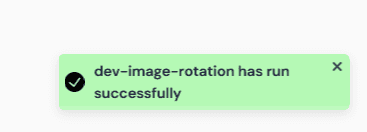
A notification informs when the execution is finished.
-
After the execution, the details of the run contain the outputs.