Add a resource in DeltaTwin® Drive
To upload a resource to your DeltaTwin® Drive, you have two ways : using the user interface (UI) or the command line interface (CLI).
From the UI
Access My workspace
Choose Resources
To display the list of the personal resources of the user :

Click Create new resource
Fill the form
A modal opens to create a new resource :
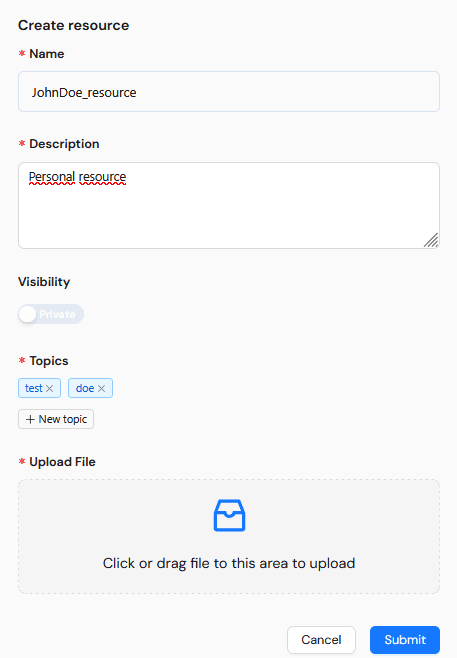
After filling the different fields and upload your file, click on “Submit” to finish the creation.
From the CLI
You can take advantage of the CLI (Command Line Interface), this step generates a unique ID for the resource, which you’ll later use in your manifest file.
deltatwin drive resource add -d <resource-description> -v <visibility [public|private]> -t <topic> <path-to-your-resource-file> <resource-name>The command will return a unique resource ID, which might look something like:
Resource ID: 123e4567-e89b-12d3-a456-426614174000List Resources Information
- To list all resources in your DeltaTwin® Drive, run :
deltatwin drive resource list- To show a specific resource information, run :
deltatwin drive resource get <resource-id>Adding a Resource to Your Manifest
To add a Drive Resource to your manifest file, follow these steps:
Identify the Resource
Ensure the file you want to add is uploaded to your DeltaTwin® Drive workspace.
Modify the Manifest File
Add a reference to the resource under the resources section of the manifest file.
{
  "resources": {
    "[resource-name]": {
      "type": "DriveData",
      "name": "[name-in-drive]",
      "value": "[resource-id]",
      "description": "<resource-description>"
    }
  }
}- resource-name (mandatory) : name of the resource you want to add.
- type (mandatory) : type of the resource. Fill it with DriveData (do not modify it!).
- name (optional) : name of the resource in your DeltaTwin® Drive.
- value (mandatory) : unique identifier (UUID) of the resource in your DeltaTwin® Drive.
- description (optional) : optional description of the resource.
Example :
"resources": {
        "image": {
            "type": "DriveData",
            "name": "static_image",
            "value" : "e808fbcc-c225-4921-ab6d-5ac9a29ce04d",
            "description": "static image"
        }
    }
Save and Publish
Save the manifest file and publish your DeltaTwin® component. The resource will now be accessible within the workflow.
Supported Resource Types
DeltaTwin® Drive supports the following resource types:
- Text Files: CSV, JSON, XML, TXT
- Binary Files
- Other Data Formats: Images, video, compressed files
Local Execution Limitation
Drive Data is seamlessly accessible for workflows running on the DeltaTwin® platform. However, there is a limitation when running workflows locally using the CLI command deltatwin run start_local, the service cannot access Drive Data remotely for local execution.