Use a Drive Data as input of a run
When a DeltaTwin® component requires an URL as input, there are different options available. One option is to set a data from either the personal or public DeltaTwin® storage.
From the UI
Select a DeltaTwin® component that requires an URL type as input
Click Run
In the modal form, the URL field offers 3 options :
- DeltaTwin Drive Data
- SesamEO product
- URL (without authentification)
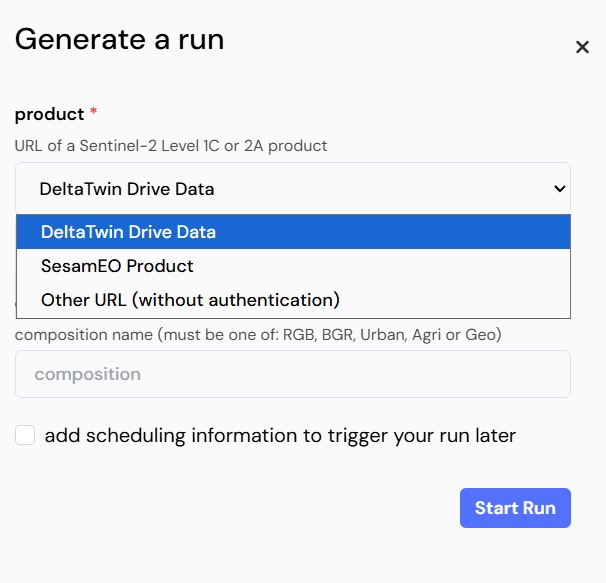
Select DeltaTwin Drive Data
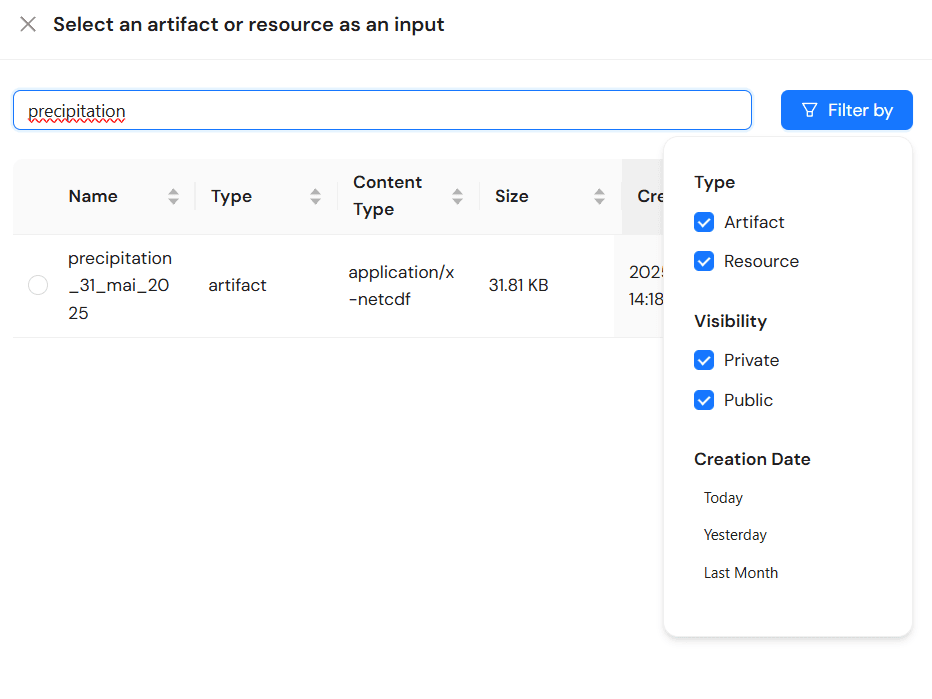
The DeltaTwin® Drive Data option allows to select an artifact or resource from a private or public storage. It is possible to filter the Drive Data to facilitate searching for the desired data.
Using the CLI
To run a DeltaTwin® with an input of type DeltaTwin® Drive Data :
Create a JSON file containing your desired input values
In the example below, the input “product” refers to a data file. To reference a Drive Data file, set the field ‘type’ to DriveData and fill in the ‘value’ field with the ID of the resource.
For example, the JSON input file for the band-extractor component will be :
{
  "product": {
      "type": "DriveData",
      "value": "the-id-of-the-resource"
    },
  "bandName": {
      "type": "string",
      "value": "B01"
  }
}
Save JSON file as inputs.json
Run deltatwin run start band-extractor -i inputs.json
To get the ID of a resource, you can :
- use the command
deltatwin drive resource list -f json; - or from the UI, navigate to the desired Drive Data and see its details page to get its ID.